Setting up a Dedicated Server
Learn how to setup your own dediacted servers - no subscriptions needed
Learn how to setup your own dediacted servers - no subscriptions needed
Setting up a Dedicated Server [UPDATED FOR THE LINUX UPDATE]
Why would you even need a dedicated server?
There is a lot of game logic and progression where you want a server that has the control over the game. For example in a simulator game, a server would validate the players action so they can't cheat and ONLY the server can store data
Requirements:
- S&box and steam account (Prefarrably 2 steam accounts)
- Either a rented VPS(basically just a server) or any old pc/laptop you don't need anymore
- A atleast 8Gb large usb stick
Setting up the server.
If you rented a VPS, you probably already have a windows or linux server, so you can skip this step:
- Open the old computer and install Linux on it. Windows also works but Linux is better for performance and generally preferred
- Make sure you DON'T NEED the device anymore, because you will wipe the entire disk
- To install a Linux server download the ubunto server on your pc and create a bootable usb. If you don't know how to do that, there are countless tutorials and youtube videos about it.
Using SteamCMD:
I am gonna assume that you now have a ubuntu server, but most of this should work for all distributions. You can always look at the offical steamcmd page
Create a new root user for steamCmd:
sudo useradd -m steam
sudo passwd steam
sudo usermod -aG sudo steamGo to the home folder:
sudo -u steam -s
cd ~Install Steamcmd on Ubuntu by pasting these commands in the terminal.
sudo add-apt-repository multiverse; sudo dpkg --add-architecture i386; sudo apt update
sudo apt install steamcmdYou may need to agree to the license agreement. Then open steamCmd. Try these commands until your in steamCmd
steamcmd/usr/games/steamcmd~/Steam/steamcmd.sh~/.steam/steam/steamcmd/steamcmd.shIf you see this text you succesfully started it:
Loading Steam API...OK
Steam>Then create a directory for s&box:
force_install_dir ~/.sboxThen type this to login with a DIFFERENT steam account. You should never login with your main steam acoount, just create a new account. Then login with your password and type the verification code if needed
login <username>Then wait for s&box to download after using this command:
app_update 1892930 validateInstalling needed dependencies:
sudo apt install -y libfontconfig1 fontconfigCongratulations, you now have setup steamCmd. The only thing left is to publish the game and then start the server
Publishing your game:
First login in the s&box website with your steam account: https://sbox.game/
Then click on your profile on the top right and click create Origanization, if you don't have one already
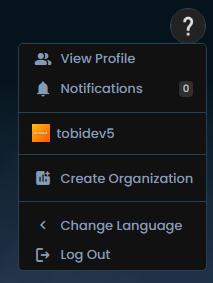
Then just click next and fill out the text fields. Then once you created the org look at the url.
For example the url for my org is: https://sbox.game/tobidev5 , so tobidev5 as my org indent, that we will need later.
You can then open your project in the editor. On the right upper corner, you can see the publish button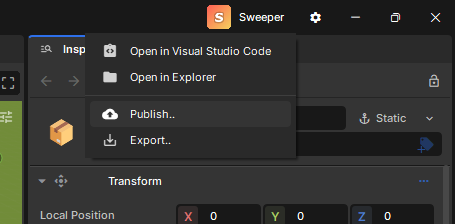 Click on it and then just fill out the title nd indent. For the organisation indent, use the one you created previously. Then click next, uploda und publish.
A new windows will pop up saying the package publish was succesful. There also is a Button: View and Edit on web whcih you can click to get to the project url.
In the browser dasboard, you can change all the settings. If you want other people to be able to play your game, set the game to released. But for testing it can stay hidden. Don't forget to save your changes#
In your organisation menu, click manage on your org.
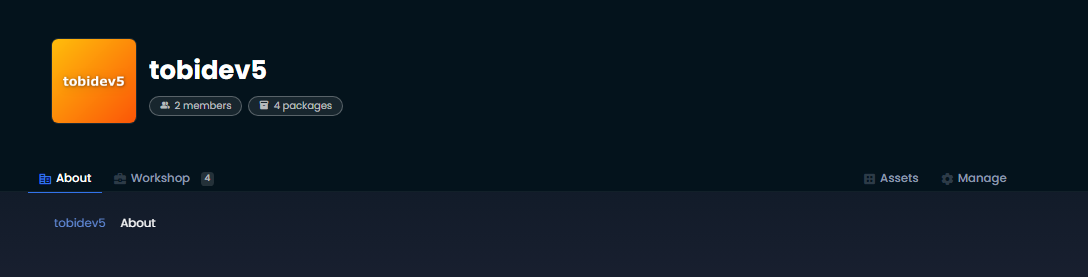 There, go to members and add the steam account that starts the server. You will maybe need to accept an invite.
Now that your game is published, we will ony have to start the server.
Starting the Dediacted Server:
Use this command to start the dedicated server:
~/.steam/steam/steamapps/common/sbox\ dedicated\ server/sbox-server +game <org>.<game> +hostname "Test Server"If you don't know your org or game name just go back to the game page in the browser. Look at the url. For exampe. https://sbox.game/tobidev5/sweeper is my url, so I have to do
~/.steam/steam/steamapps/common/sbox\ dedicated\ server/sbox-server +game tobidev5.sweeper +hostname "Test Server"You will probably need to add port forwarding on your router. Use this command to see the port if you ned it. Typical ports are 27015 and 27016
sudo ss -tulpnIf your firewall blocks the traffic, try disabling it to test if the firewall is the problem.
sudo ufw disableBut then it is highly recommende to turn it back on and only allow the ports s&box needs
sudo ufw enableTips:
- You can make your own bash scripts for starting the server
- If you are comfortable with it, use local ssh, so you can do things on the server from your main device. Prefarrable with ssh keys
- Look out for: "Generic Connected to Steam" in the server screen. This means everything worked
Common Problems:
If the steamclient.so is missing, do this:
mkdir -p /home/steam/.steam/sdk64
ln -sf "/home/steam/.local/share/Steam/steamcmd/linux64/steamclient.so" \ /home/steam/.steam/sdk64/steamclient.so~/.steam/steam/steamapps/common/sbox dedicated server/sbox-server.sh: No such file or directoryTry a few different paths. If none work, make sure you correctly installed the steam app.
Also try using the find command to see where the server is located
find -name sbox-server*If the output is for exampe: ./.local/share/Steam/steamapps/common/sbox dedicated server/sbox-server.sh
just use that instead:
~/.local/share/Steam/steamapps/common/sbox\ dedicated\ server/sbox-server +game tobidev5.sweeper +hostname "Test Server"Don't start 2 servers on one computer. It will just mess up the ports.